Copilot Studio: The New Development Environment
Patrick Wahlmüller shows how agents and workflows differ in the new designer and builds a workflow for email reply drafts without writing code.
A New Designer for AI Workflows
Copilot Studio, Microsoft’s low-code tool for AI solutions, has received a comprehensive refresh. The new interface combines AI steps, flow control, and connectors in a much more responsive development environment.
Interacts through chat and dynamically orchestrates the solution path based on instructions, knowledge, and tools.
Runs a clearly defined process in the background without interaction and can use AI steps along the way.
Important: In this article, “workflows” refers to the new workflows in Copilot Studio, not the Agent Flows that have been available for some time.
Copilot Studio, Microsoft’s low-code tool for AI solutions, has received a comprehensive refresh. The new interface is available through Copilot Studio Preview. According to Microsoft, this preview is already production ready.
Agent or Workflow
The key difference lies in how the process is controlled. An agent can dynamically orchestrate the solution path based on instructions, knowledge, and available tools. With a workflow, the procedure is defined explicitly, although AI content can still be included. A workflow is therefore the natural choice for a process that should look the same every time. For open-ended tasks where the path only becomes clear from the input, an agent is the better fit.
If you would like to try creating an agent with Copilot Studio, you can use the free Copilot Studio trial license. More information about licensing is available in the Copilot Studio Licensing Guide.
The Scenario
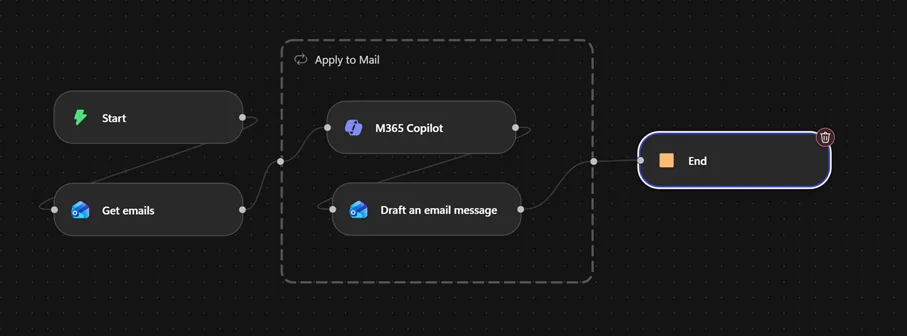
To make this tangible, I am using a familiar example: drafting a reply to an incoming email. The workflow should read the incoming message and save a suitable reply draft in the mailbox. This is a clearly defined process - exactly the kind of task for which a workflow is well suited.
The steps are:
- Retrieve the email from the selected mailbox
- Generate a reply for each email
- Save each reply as a draft reply in the mailbox
The New Designer
Now let us look at the implementation in the new designer. The first thing that stands out is that the new designer is considerably more responsive than the previous one.
The building blocks in the Add panel can be roughly divided into three groups: AI steps, flow control (Variable, If/Else, Loop, Function), and integration. Four of them are especially worth a closer look:
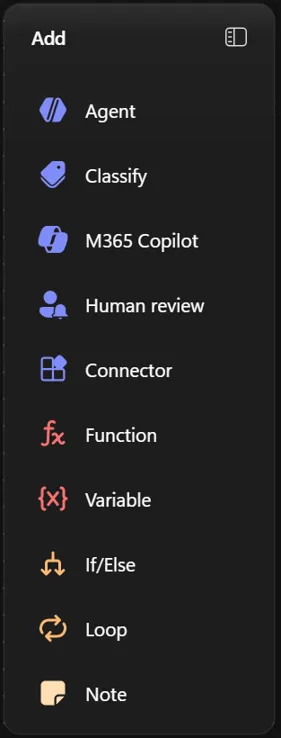
- Classify handles content classification: It evaluates the incoming content against predefined categories and uses the result to control the next steps - the classic “invoice, support request, or newsletter?” scenario, without having to build the logic as a chain of conditions.
- M365 Copilot brings the capabilities of Microsoft 365 Copilot into the workflow. It can also access context from emails, documents, and chats instead of only using the data passed within the workflow. Access to this additional data is configurable, not mandatory.
- Human review is the human-in-the-loop step: The process pauses and waits for human approval or correction before continuing. Especially for anything that goes out to other people, such as sent replies, this is the step that turns an experiment into a workflow suitable for productive use.
- Connector connects external systems and data sources and brings the familiar connector ecosystem into the designer.
The Implementation
Now it is time to implement the workflow, and as promised, this is possible without specialist programming knowledge.
Here is the overall picture first, followed by a closer look at the individual steps.
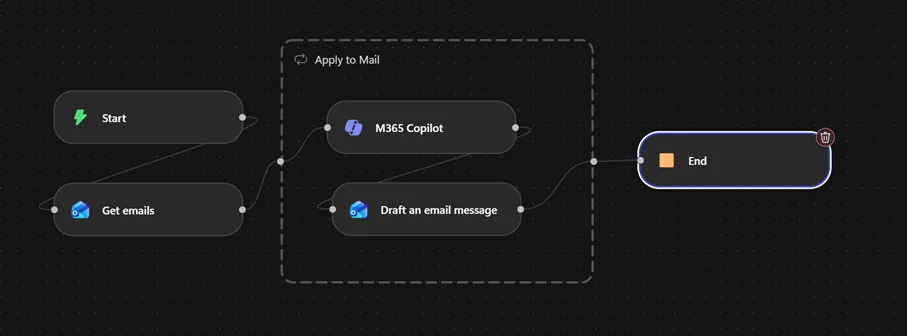
That is the process in a nutshell.
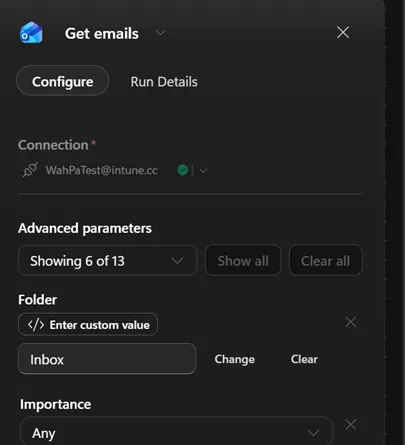
Retrieving Emails (Get mails)
This is where the emails are retrieved through a connector. Select the appropriate connector - Office 365 Outlook in my case - and configure it.
Then for Each Email (Apply to Mail)
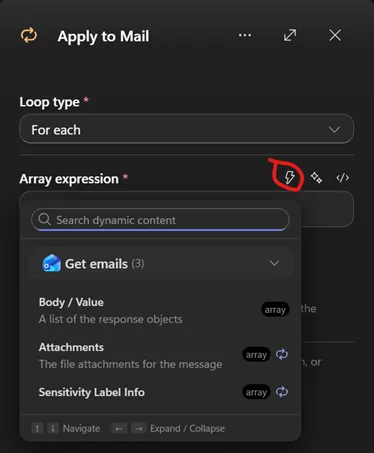
Because I configured the workflow to handle multiple emails, we need a loop at this point to process each email individually. We still need to define the array that will be processed in the loop. The available choices appear through the lightning bolt (Insert dynamic content), and in this example there are three options. For our use case, we need Body/Value.
Generate the Reply with M365 Copilot
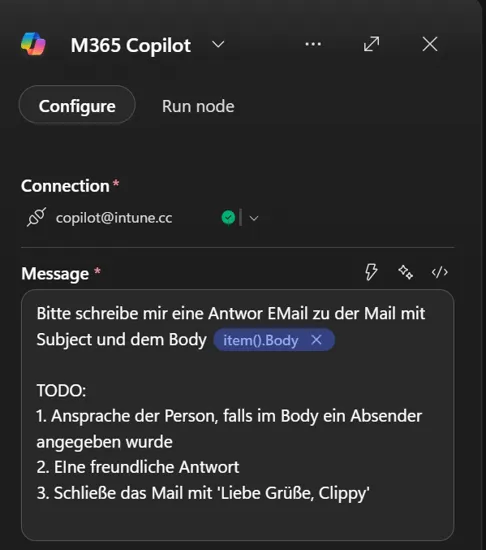
Add the M365 connector inside this loop. In principle, you only need to specify a user with a Copilot license and provide the prompt for the agent that generates the reply. Insert dynamic content with the lightning bolt again. The properties of the current loop are prefixed with item(), so in this example I pass the current body.
Save the Reply as a Draft
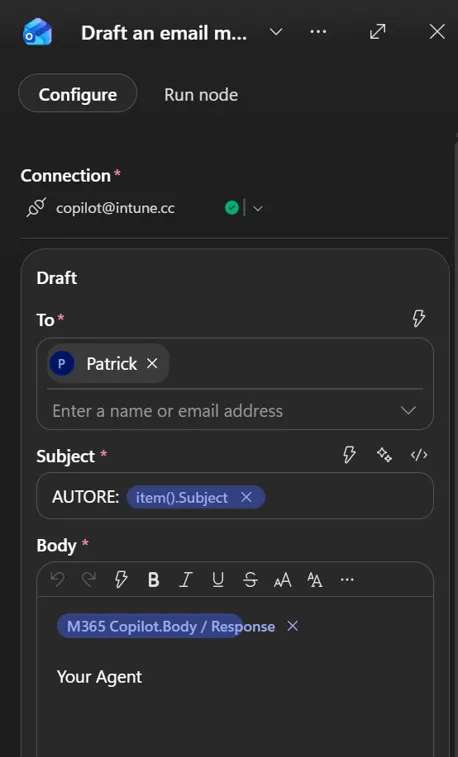
The final step is to save the email as a draft. Enter the recipient, subject, and text.
Publish and start the workflow, and a reply draft is generated for every email returned by the connector.
This leaves us with a reply draft in the mailbox that we can edit and send. The human-in-the-loop is explicitly part of the process.
Conclusion
The reply-draft workflow is implemented with just a few building blocks and without a single line of code. That is exactly the strength of the new designer: The building blocks are tailored to represent a typical AI workflow without unnecessary detours.
One thing to keep in mind is that we are working with a preview. This is noticeable in a few places where I would have liked to see additional functionality that is not available yet.
This is not everything that can be done with Microsoft AI. I will keep exploring it, and there will certainly be a few more interesting articles. For example, the new designer now also includes an agent that can generate workflows. But that is a topic for another time.
Links
Practical Takeaway
The reply draft is created with just a few building blocks and without a single line of code. The human-in-the-loop remains particularly important: The workflow only saves a draft that a person can review and adjust before sending. Since the interface is still in preview, some functionality is still missing in places.
Agent or Workflow - What Would You Build?
Where are you already using clearly defined AI workflows, and where do you need the flexibility of an agent? You can find more summer inspiration in the Hitzefrei collection.